

Gutenberg is a default WordPress editor. it was released in December 2018. After release, most WordPress user is not ready to switch to a new one. It’s possible that you’ll wish to disable the new editor and keep the old one. There are a few simple ways to disable the Gutenberg editor so that it does not impact your everyday work. It’s vital to highlight that these solutions are unlikely to be long-term. WordPress is promoting the Gutenberg editor, and you’ll need to use it at some time.
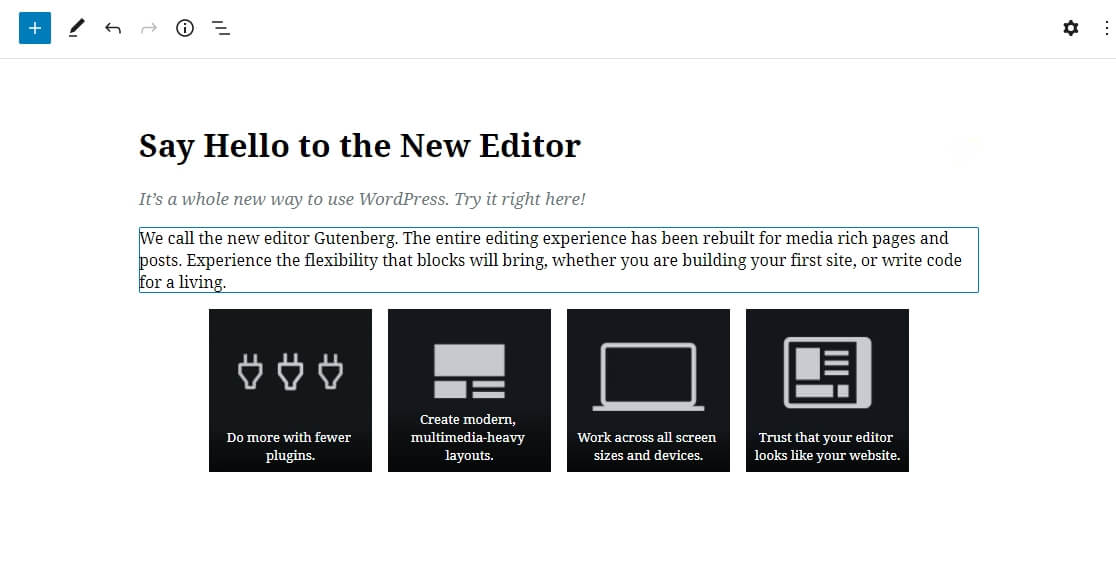
Here at TechReviewGarden, I’ll teach you how to disable the Gutenberg editor and continue working with the Classic editor. Backward compatibility is always supported by WordPress. As a result, you can quickly go back to the Classic editor at any time. If you’re concerned that the changeover may affect your site, keep reading to dispel any fears.
Install Classic Editor Plugin
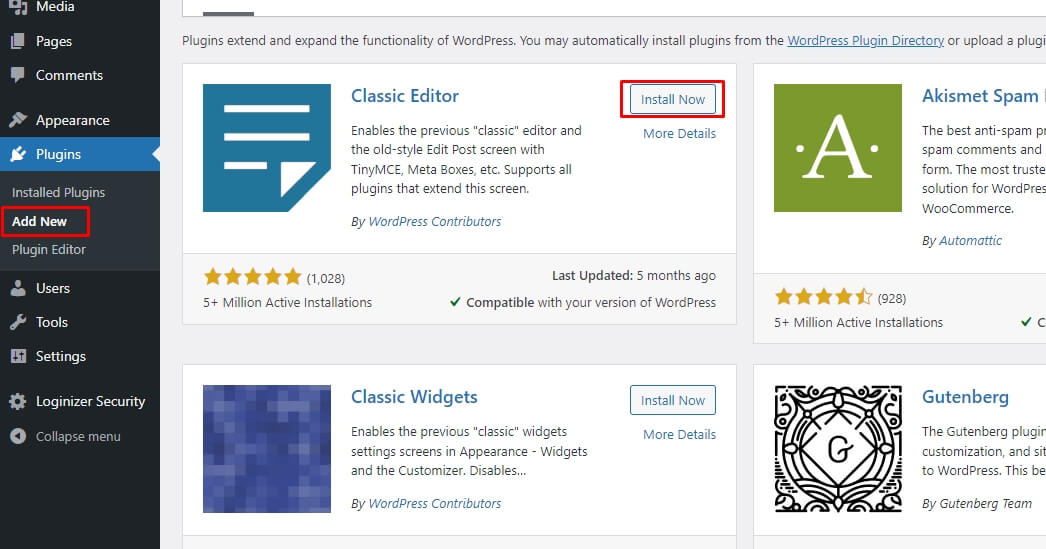
Classic Editor is the official WordPress Plugin. At first go to the plugins section then you can see the classic editor, click on install now to start the installation.
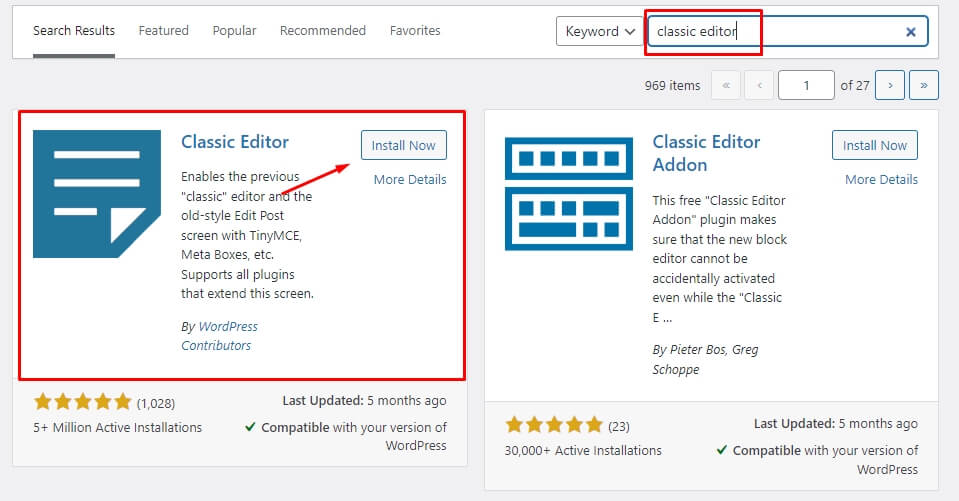
If you can not see the plugin use the search field. In the search field, type ‘Classic Editor’ Plugin. This plugin support 40 languages with over 5 million active installations. When the installation is complete activate Classic Editor Plugin.
Plugins > Add New > Search for Classic Editor Plugin > Click Install Now > Activate
Install Disable Gutenberg Plugin
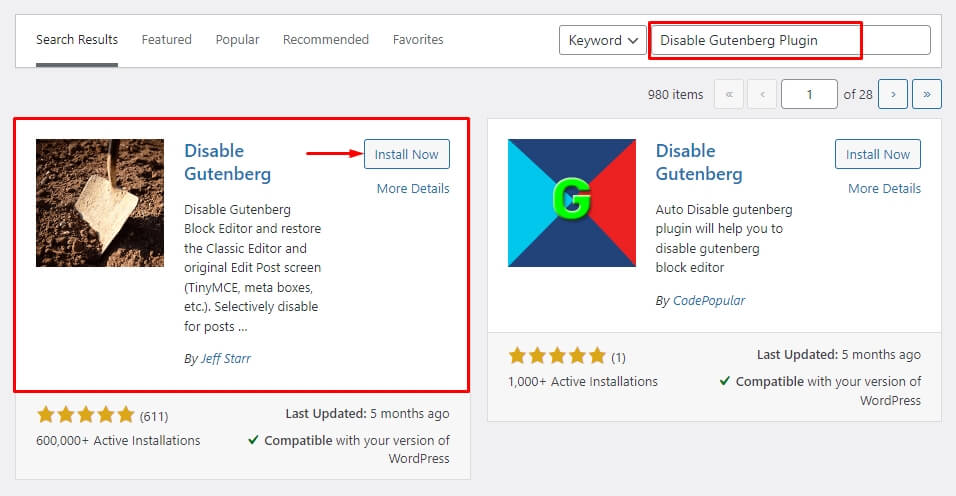
This is another plugin called “Disable Gutenberg”. At first, go to the plugins section, type ‘Disable Gutenberg Plugin’ in the search field. After that click on install now to start the installation. It is completely disabled Gutenberg Editor. It has 600,000+ active installs and 600+ users gave 5-star ratings. You can also search it from the dashboard. It is not an official WordPress Plugin.
Plugins > Add New > Search for ‘Disable Gutenberg Plugin’ Plugin in the search bar > Install Now > Activate
Disable Gutenberg Editor In Code
This solution is recommended for those who are experts in that sector. Because you’ll just be working with a few lines of code. In your function.php file, copy and paste the following code. To even copy and paste the code, you must have basic coding skills. Because it does not require any plugins. So, insert the following code into your function.php file to fully deactivate the Gutenberg editor. After that, you will access the Classic editor.
add_filter("use_block_editor_for_post_type", "disable_gutenberg_editor");
function disable_gutenberg_editor()
{ return false; }
However, getting to know Gutenberg, WordPress 5’s default editor, can help you keep your site running smoothly in the future. If you’re still not convinced, any of the ways listed above can be used to disable the Gutenberg editor. What are your thoughts about Gutenberg? I’d love to hear about it in the comments section below! If you like this article please give us a like and share this on social media.